NSFAS App 2026: Download, Registration, Login & Troubleshooting

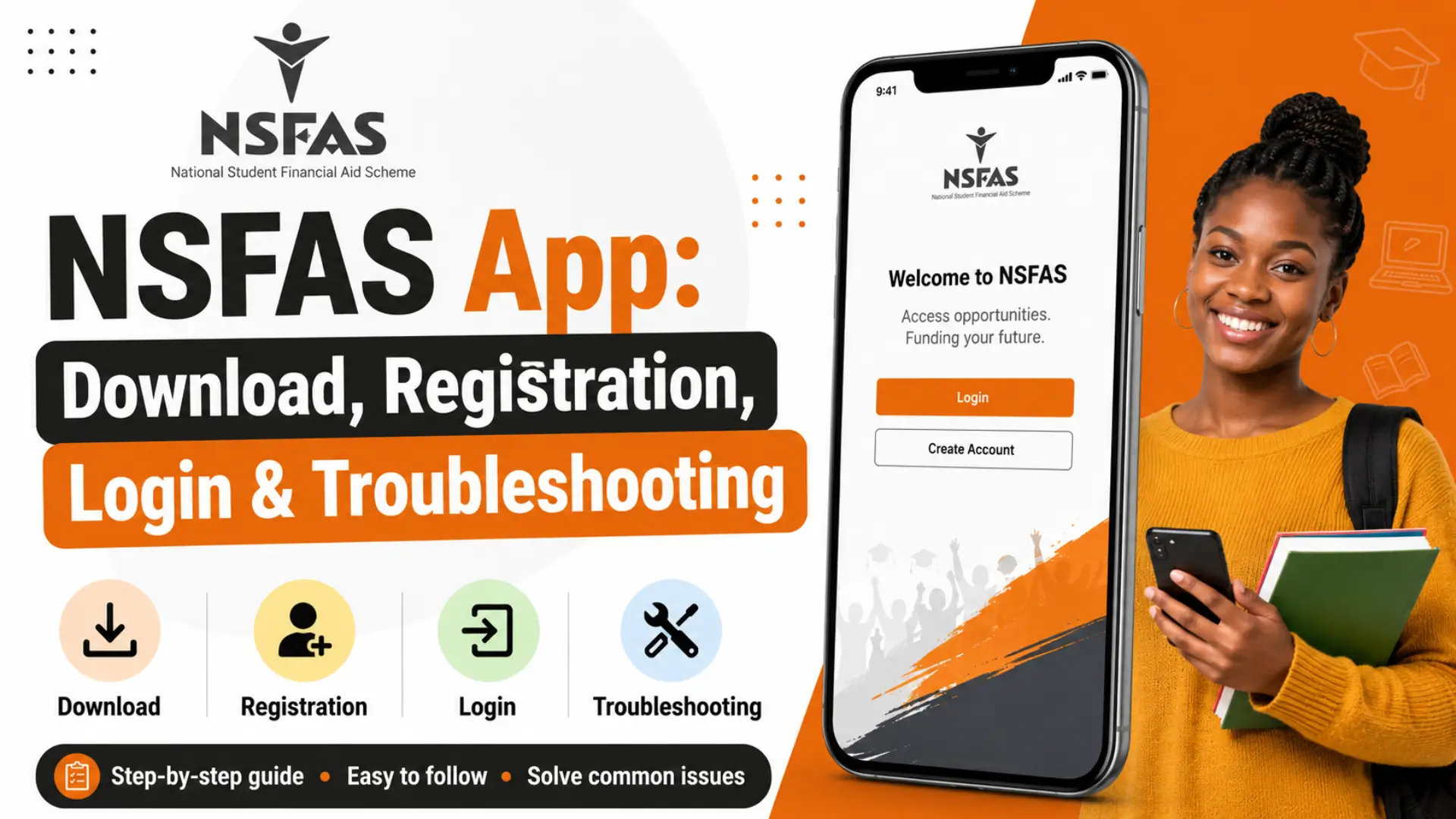
If you’re a South African student relying on financial aid to fund your studies, you’ve probably heard about the NSFAS App. As someone who has guided hundreds of students through the financial aid process, I can tell you this: the app has genuinely changed how students interact with NSFAS. No more standing in long queues or waiting endlessly on hold. Everything you need your application status, funding updates, and account details is now available right on your phone.
In this guide, I’ll walk you through everything you need to know about the NSFAS App: what it is, how to download and register, how to log in, how to use its features, and how to fix common problems when they pop up. By the end, you’ll be confident using the app to manage your funding journey from start to finish.
What Is the NSFAS App and Why Does It Matter?
The NSFAS App is the official mobile application developed by the National Student Financial Aid Scheme (NSFAS), a South African government-funded bursary program. NSFAS operates under the National Student Financial Aid Scheme Act 56 of 1999 and is administered by the Department of Higher Education, Science and Innovation.
The scheme provides financial assistance to students from disadvantaged backgrounds who want to study at public universities or Technical and Vocational Education and Training (TVET) colleges. The app was created to give students a faster, more convenient way to apply for and manage this funding directly from their smartphones.
In simple terms, the NSFAS App puts your entire funding journey application, document uploads, status tracking, and communication — into one mobile platform, so you don’t have to rely solely on desktop access or physical NSFAS offices.
Key Features of the NSFAS App You Should Know
Before you download the app, it helps to understand exactly what it offers. Here are the standout features:
- Online Application Submission: Apply for NSFAS funding directly from your phone without needing a computer.
- Real-Time Status Tracking: Check whether your application is Submitted, Under Review, Provisionally Funded, or Approved.
- Document Upload: Upload required documents such as your ID, proof of income, consent forms, and Annexure A straight from your device.
- Push Notifications: Receive alerts about missing documents, application decisions, or important deadlines.
- Account Management: Update your personal details, contact information, and banking details.
- Bursary Agreement Signing: Digitally sign your bursary agreement, a required step before funds can be released.
- Allowance and Payment Information: View details about tuition, registration, and accommodation allowance payments.
This combination of features means you rarely need to visit a physical office or log in through a browser — the app handles most of the process end-to-end.
How to Download the NSFAS App (Step-by-Step)
Getting the app onto your device is straightforward. Here’s how to do it correctly:
Step 1: Open Your App Marketplace
- Android users: Open the Google Play Store.
- iPhone users: Open the Apple App Store.
Step 2: Search for the Official App
Type “NSFAS” into the search bar. Look specifically for the official app published by the National Student Financial Aid Scheme (package name: com.seedinc.nsfas.nsfas_app on Android) to avoid downloading a fake or unofficial copy.
Step 3: Install the App
Tap Install (Android) or Get (iOS), and wait for the download to complete.
Step 4: Open and Set Up
Once installed, open the app from your home screen and proceed to registration or login.
A word of caution as your adviser: Only ever download the NSFAS App from the official Google Play Store or Apple App Store. Third-party APK sites may host outdated, insecure, or fraudulent versions of the app. If you’re ever unsure, verify the developer name and read recent reviews before installing.
NSFAS App Registration: Creating Your myNSFAS Profile
If you’re a first-time user, you’ll need to register before you can log in. Here’s the process:
- Open the app and tap Register.
- Enter your South African ID number.
- Create a strong, secure password.
- Provide a valid email address and cellphone number.
- You’ll receive a One-Time Pin (OTP) via SMS or email — enter this to verify your details.
- Tick the consent box agreeing to NSFAS’s terms and data verification policy.
- Submit your registration to activate your myNSFAS profile.
Tip from experience: Make sure the email address and phone number you use are ones you check regularly. NSFAS communicates important updates including document requests and funding decisions primarily through these channels, so a wrong or inactive contact detail can cause you to miss critical deadlines. For more information about NSFAS Email Address for Enquiries.
NSFAS App Login: Accessing Your Account the Right Way
Once registered, logging in is quick:
- Open the NSFAS App.
- Enter your ID number or registered username.
- Enter your password.
- Tap Login.
These are the same credentials you use to access the myNSFAS web portal at www.nsfas.org.za, so your login works across both platforms.
If you’ve forgotten your password, use the Forgot Password option on the login screen. You’ll receive a reset link or OTP via your registered email or phone number. Find out more about NSFAS Login.
What You’ll See After Logging Into the NSFAS App
Once you’re logged in, here’s what you’ll typically find on your dashboard:
- Application Status: A clear view of where your application stands.
- Personal Profile: Your submitted personal, academic, and contact information.
- Document Center: A list of required and submitted documents.
- Notifications: Any messages or alerts from NSFAS regarding your funding.
- Funding Summary: Details on tuition, accommodation, and allowance coverage, where applicable.
This dashboard is your central hub, so it’s worth checking regularly, especially during application and registration periods.
How to Use the NSFAS App?
Using the app effectively comes down to knowing where to find what you need. Here’s a practical walkthrough:
- To apply for funding: Navigate to the application section, select “first-time applicant” or “returning student,” choose your institution and program, and complete each section carefully. Grade 12 learners can apply even before receiving their final results.
- To check your status: Go to the “Track Application Progress” or “Application Status” tab. You’ll see stages such as Submitted, Documents Missing, Under Review, Approved, or Rejected.
- To upload documents: Head to the document section, select the required document type, and upload a clear photo or scan directly from your phone’s gallery or camera.
- To update your details: Visit your profile section to correct or update personal, contact, or banking information.
Important reminder: Always double-check that the details you enter match your official identification documents exactly. Mismatches are one of the most common reasons applications get delayed.
How Does the NSFAS App Work Behind the Scenes?
At a technical level, the NSFAS App functions as a mobile front-end connected to the same myNSFAS database used by the web portal. This means:
- Any update you make on the app reflects on the website, and vice versa.
- Your application moves through an automated verification process that checks your details against sources like Home Affairs and SARS to confirm eligibility.
- Once verified, your application is assessed against NSFAS’s financial eligibility criteria generally a combined household income of no more than R350,000 per year (or R600,000 for applicants with disabilities).
- Approved applicants receive a bursary agreement to sign digitally before funds are released.
Essentially, the app is a convenient access point into a much larger, centralized system it doesn’t process your application independently, but it does let you manage every step of that process remotely.
Keeping Your NSFAS App Updated
Like any mobile application, the NSFAS App receives periodic updates to fix bugs, improve performance, and add new features. As your adviser, I’d strongly recommend the following habits:
- Enable auto-update on your app store so you always have the latest, most secure version.
- Check for updates manually if you notice the app behaving unusually — outdated versions are a common cause of glitches.
- Read the “What’s New” section in the app store listing before updating, so you know what’s changed.
- After a major update, log out and log back in to ensure your session refreshes properly.
Keeping the app updated isn’t just about new features — it also patches security vulnerabilities that could put your personal information at risk.
NSFAS App Not Working
It’s a common frustration, especially during peak application periods when thousands of students are trying to access the system simultaneously. If the app isn’t working for you, here’s what’s likely happening and what you can do:
Common causes:
- High server traffic during application or results periods.
- An outdated app version.
- Poor or unstable internet connection.
- Temporary server maintenance on NSFAS’s end.
What to try:
- Check your internet connection and switch between Wi-Fi and mobile data.
- Force-close the app and reopen it.
- Update the app to the latest version.
- Clear the app’s cache (Android: Settings > Apps > NSFAS > Storage > Clear Cache).
- Restart your device.
- If none of this works, try accessing myNSFAS through the website instead, and attempt the app again later.
Common NSFAS App Problems and Quick Fixes
Here’s a quick-reference table of issues students frequently run into:
- Problem: App won’t open or crashes immediately
- Solution: Update the app, clear cache, or reinstall it entirely.
- Problem: OTP not received
- Solution: Check your signal strength, confirm your number is correct, or request the OTP again after a few minutes.
- Problem: Login credentials not recognized
- Solution: Use “Forgot Password” to reset, and ensure Caps Lock isn’t affecting your password entry.
- Problem: Documents fail to upload
- Solution: Ensure the file is a clear image under the size limit, and check your internet connection before retrying.
- Problem: Application status not updating
- Solution: This is often a delay on NSFAS’s end during high-traffic periods check again after 24–48 hours before contacting support.
- Problem: App shows an error during peak season
- Solution: Try again during off-peak hours (early morning or late evening), when server load is lower.
If a problem persists beyond a few days, contact NSFAS directly through their toll-free number or official support channels rather than continuing to retry the app repeatedly.
Frequently Asked Questions About the NSFAS App
Conclusion
The NSFAS App has made managing student funding significantly more accessible for South African students, letting you apply, track your status, upload documents, and manage your account without needing to visit an office or rely solely on a desktop computer. Like any system serving a huge number of users, it isn’t perfect — you may run into occasional glitches, especially during peak season — but understanding how to download it correctly, register properly, and troubleshoot common issues will save you a lot of frustration.